
How to Fix Outlook Email Access with Google App Passwords
When Microsoft Outlook suddenly stops sending or receiving email from a Google-hosted mailbox, the cause is usually a blocked sign-in method rather than an incorrect password.
This article explains why this happens, how to remove unsafe access, and how to restore Outlook access correctly.
When should you use this guide?
Follow these steps if you are seeing any of the following:
- Outlook repeatedly asks for your password
- Google sends a “blocked sign-in attempt” or “less secure app” alert
- Email worked previously and stopped without changes on your side
- You recently enabled 2-Step Verification on your Google account
This guide does not affect browser access to Gmail.
What is an app password?
An app password is a special one-time password created in your Google account. It allows older or limited apps (such as desktop email clients) to connect without using your main Google password.
Important points to understand:
- App passwords bypass the normal Google sign-in screen
- They are required when 2-Step Verification is enabled
- Each app password can be revoked at any time
- Removing one does not lock you out of your account
Remove unused or unsafe app passwords
If a device was lost, replaced, or an app is no longer used, its app password should be removed immediately.
Steps to remove an app password
- Sign in to your Google account
- Open the App passwords page
- Locate the app or device in the list
- Click Remove next to that entry
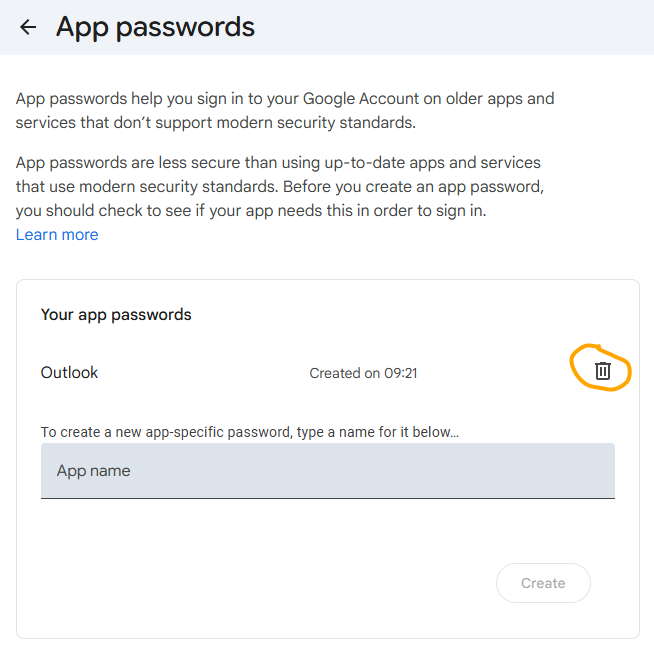
Once removed, that app can no longer access your mailbox.
Removing an app password does not affect Gmail access in your browser and does not delete any email.
Fixing Microsoft Outlook access
There are two supported ways for Outlook to connect to a Google account. Use the option that matches your Outlook version.
Option 1: Sign in with Google (recommended)
Use this method if Outlook shows a Google sign-in window.
- Add the email account in Outlook
- When prompted, choose Sign in with Google
- Complete the Google login in the browser window
- Approve access when asked
This method does not require an app password and is the safest option.
Always install the latest version of Outlook before attempting this method.
Option 2: Use an app password
Use this method if Outlook does not support Google sign-in or never opens a browser window.
- Ensure 2-Step Verification is enabled on your Google account
- Create a new app password from the App passwords page
- Select Mail as the app and Windows Computer as the device
- Copy the generated password
- Important: The password will not be shown again, so make sure you write this down. The spaces are not part of the password.
- Paste it into Outlook instead of your normal Google password
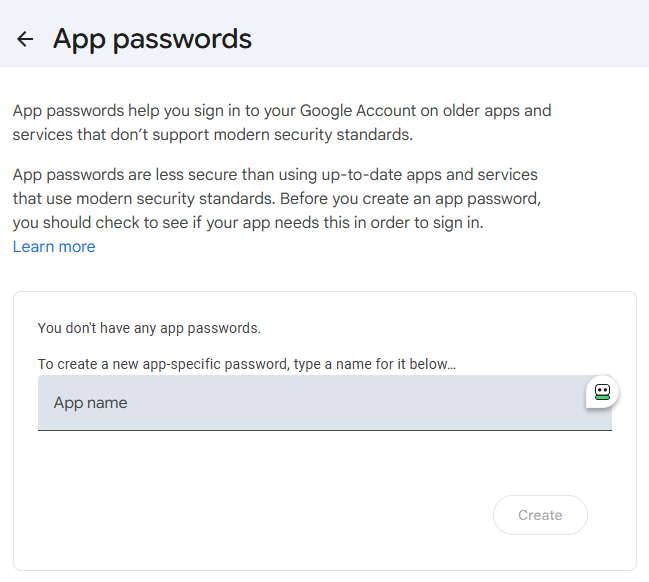
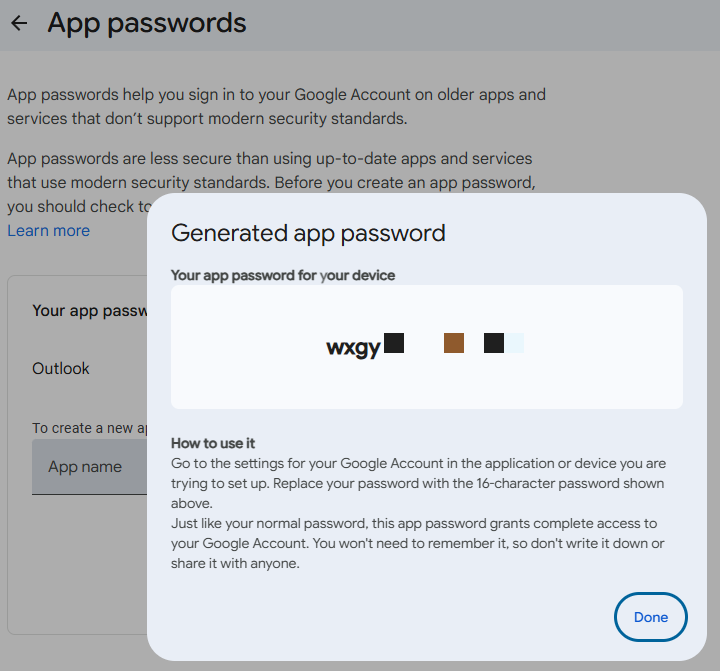
Each app password is shown only once. Store it securely.
If it still does not work
If Outlook continues to fail after following the steps above:
- Remove the email account from Outlook
- Restart Outlook completely
- Add the account again using one method only
- Check your Google account for recent security alerts
- Confirm 2-Step Verification is still enabled
If you need support, be ready to provide:
- Outlook version
- Whether Google sign-in was offered
- The date the app password was created
What this guide does not cover
- Password resets for Google accounts
- IMAP being disabled at domain level
- Mailbox suspension or policy blocks
- Third-party security tools intercepting sign-ins
These require administrative review.
Further thoughts…
Most Outlook-to-Google issues are authentication changes, not faults. Removing old access and choosing the correct sign-in method resolves the majority of cases without data loss or mailbox changes.